Page

Monday, November 2, 2009

Convert PowerPoint to Flash in One Click

Free PowerPoint to Flash converter creates web-friendly Flash movies from your PowerPoint content keeping its visual parameters and animation effects during conversion.

iSpring Free works within PowerPoint, transforming it into a fast and easy Flash authoring tool.

Just click Quick Publish and iSpring will generate a Flash movie from your PowerPoint presentation in just a few seconds.

Special Features :


Easily distributable in Flash format which is used everywhere and is optimized for the web.

Highly compatible regardless of viewers' platforms and browsers.

Accessible to the worldwide audience on the free Slide Boom online portal.

Rapidly viewed as streaming Flash starts playback as soon as the first slide is loaded.
Secure as .swf files are not easily pirated, accessed or changed.

Link is here: http://www.ispringsolutions.com/products/ispring_free.html

- JMD Computer                                              Keep Comment

* if Link is Broken, fill free form click here with Link Details.

Sunday, October 11, 2009

Sony flexible OLED notebook concept gets second outing

Sony interduced always something special .Now the turn new laptop. Sony flexible OLED notebook concept gets second outing.In this netbook Look wise so sexy and cool as like sports model .in this netbook sony can add some new feature .The idea is that the notebook would use one of Sony’s 0.2mm-thick OLED panels, which the company also had on show – and working – alongside the non-functional mock-up. Thanks to OLED’s frugal power demands you’d end up with a notebook that not only could deliver non-standard keyboard and control layouts – Apple take note, please – but do so for extended periods.image

Source: - http://tblog.in/sony-flexible-oled-notebook-concept-gets-second-outing/

Asus Eee Top ET2002 review

Asus Eee Top ET2002 all-in-one recently and were cool desktop.And they can also some cool feature inbuilt like its:-configration in this desktop company can add new feature’s The computer has a large 20 inch, 1600 x 900 pixel display and packs a 1.6GHz Dual Core Atom 330 processor.2GB of RAM, and a 320GB hard drive, was “impressive… in many ways.” It easily handles 1080p playback and video games that would cause “most Intel-Atom based PCs to choke.” imageAside from the ION graphics, unfortunately, this guy comports itself like a “typical” Atom netbook: unzipping large files takes forever, boot times are slow, and the system sometimes felt overtasked when browsing the web. Then again, when you’re spending less than $600…

Source:- http://tblog.in/asus-eee-top-et2002-review/

Gateway’s EC18T Windows 7 Tablet Leaked Early?

Gateway’s EC18T is a big offer by the company.In this laptop may have some xool feature like :Its degine wise look’s wise so sexy and dashy .Its configration of this laptop is 11.6-incher is going to boast an Intel Core 2 Duo processor, up to 4GB of DDR3 SDRAM, a Mobile Intel GS45 Express graphics chipset, and it’ll run either Windows 7 Home Premium or Basic.
The launching of this laptop is October 22nd ….

image

Source:- http://tblog.in/gateways-ec18t-windows-7-tablet-leaked-early/

Wednesday, September 9, 2009

Showing posts with label Yahoo. Show all posts How To Run Multiple Accounts GTalk, Yahoo Messenger And MSN Messenger

If Your like me and have multiple Gmail, Yahoo, or MSN accounts and would like to log in to Multiple instances of their respective Messengers. Then read ahead as I teach you how to run Multiple instances of GTalk , Yahoo Messenger, MSN Messenger simultaneously.

How To Run Multiple GTalk Messengers Simultaneously

  1. Right-click Your Gtalk Messenger shortcut on your desktop
  2. Click Properties
  3. Select The Shortcut Tab
  4. You will see A Target TextBos with: “c:\program files\google\google talk\googletalk.exe” /startmenu
  5. Change the Text to “c:\program files\google\google talk\googletalk.exe” /nomutex
  6. Click Apply and OK. to close the window.
  7. Now you can copy the shortcut file and paste Multiple versions on your desktop rename the shortcut to associate them with the appropriate Gtalk Account.

How To Run Multiple Yahoo Messengers Simultaneously

You can easily run multiple instance of Yahoo Messenger without any Hacking or Technical Knowledge. All you are required to do is to download Y! Multi Messenger this is a software that will allow you to run multiple versions of yahoo with just a click.

Just run the install and then start using the Y!Multi Messenger icon that will appear on your desktop instead of the regular Yahoo! Messenger Icon.

How To Run Multiple MSN Messengers Simultaneously

To run Multiple instances of MSN messengers you will need MSN Messenger Polygamy

  1. Copy Polygamy to messenger folder, usually @ C:Program FilesMessengermsmsgs.exe
  2. Then Close The Messenger Program.
  3. Then run Polygamy and Press Apply patch.

Open Multiple Copies of Windows Live Messengers

  1. Download and install Messenger Plus! Live
  2. Launch Preference settings
  3. Choose Messenger tab, on Main checked on Allow me to connect to several accounts simultaneously.
  4. Done, double click again to launch another copy

Have a Smart Talk...!!

- JMD Computer                                                            Keep Comment

* if Link is Broken, fill free form click here with Link Details.

Source:- http://googleworldlatestnews.blogspot.com/2009/05/how-to-run-multiple-accounts-gtalk.html

Saturday, September 5, 2009

WD Share Space Network Storage System

This high-speed network-attached storage system with capacities up to 8 TB and a space-saving footprint gives you all the benefits of a big time data center without the need for a big time IT department. Perfect for centralizing and sharing data and multimedia files on a small office or home network.

Key Features

Big capacity, small footprint - Offered in 2, 4 and 8 TB capacities, this small-footprint four-bay system takes up very little space and provides plenty of storage to go around.

RAID capability - Offers multiple RAID configurations for data protection and speed -- RAID 0 (Striped), RAID 1 (Mirrored) and RAID 5. The RAID 5 mode, only available on the fully-populated 4-drive system, is the recommended mode to achieve both high-performance and data protection through redundancy.

The 4 and 8 TB WD ShareSpace systems are shipped in RAID 5 mode for maximum reliability.

The 2 TB WD ShareSpace system is shipped in Spanning Mode for maximum capacity and the flexibility to add additional drives without reformatting the system.

Click Here for Photo Gallery

Find out more about RAID

High-speed access, Ethernet connectivity - Provides data transfer rates up to 1000 Mbit/s when used in a GigE network.

Gigabit networking and transfer rates are five to six times faster than other network storage systems. This performance is comparable to USB 2.0 direct-attached storage.

Easy setup and discovery - An intuitive set-up wizard and easy-to-use discovery tool makes installation a snap.

E-mail alert system - Monitors drive and system health and sends you an e-mail if a problem is detected.

Stream digital media anywhere in your home - Built-in media server for streaming music, photos and movies to any DLNA certified multimedia device such as Playstation® 3, Xbox 360®, wireless digital picture frames, and connected audio receivers. DLNA 1.5 & UPnP certified.

iTunes® server support - Centralize your music collection and stream to a Mac® or Windows® PC using iTunes software.

Build your collection - Centralize digital media from all your computers into one vast media library. Now anyone can enjoy your collection from anywhere in your home.

Microsoft Active Directory support - Will join an Active Directory domain to utilize AD users and groups.

Push-button transfer - Plug a USB drive into the front-mounted USB 2.0 port and push a button to automatically transfer all the data on the drive to the WD ShareSpace system.

Automatic network backup software - Set up continuous backup for the computers* in your network using the included automatic backup software. Select the files you want to back up, then set it and forget it; every time you save a change it's automatically backed up. *3 software licenses included.

Remote access software - Access your files anywhere, anytime using MioNet remote access services from WD.

Download manager - Supports scheduled download through FTP and HTTP. Simultaneously manage multiple download tasks.

Windows Vista™ certified - Works seamlessly with Windows Vista to provide easy setup and automatic discovery.

Built-in FTP server - Set up your own FTP server. Manage the access authority and share your files with your friends or customers easily.

Three USB 2.0 ports - Two USB ports on the back to connect additional USB hard drives for backup or additional network storage. One USB port on the front for push button transfer.

Cooler, quieter, eco-friendlier -
Equipped with WD drives using WD GreenPower Technology, this system, with its efficient cooling architecture, and power saving mode, consumes up to 33% less power**, is reliably cool, and remarkably quiet.
** Tests based on comparison between a 1 TB dual-drive system using 7200 RPM drives and a 1 TB dual-drive system using WD’s GreenPower drives.

Power failure protection - Connect this system to your Universal Power Supply (UPS). If a power failure occurs, the system will shut down gracefully, protecting you from data loss.

Easy maintenance - Add or swap out drives quickly and easily.

Network storage manager - Manage your system configuration, create user IDs, passwords, security permissions, and quotas.

Ideal For

For small workgroups of 5 to 10 this system offers compact, centralized storage, accessible from anywhere.

Compatibility

  • Windows® Vista/XP/2000
  • Mac OS X 10.4.11+, 10.5.2+

Compatibility may vary depending on user’s hardware configuration and operating system.

Click Here for Photo Gallery


Package Contents

  • Network storage system with RAID (populated with 2 or 4 hard drives)
  • Ethernet cable
  • 2 hard drive mounting rails (for 2-drive models)
  • AC adapter
  • Software CD
  • Quick Install Guide

Performance Specifications

Serial Transfer Rate


USB 2.0


Serial Bus Transfer Rate (USB 2.0)                 480 Mb/s (Max)

Transfer Rates


Ethernet                                         10/100/1000 Mb/s capable

Physical Specifications


Capacity                                                                      4 TB


Interface                                                               Ethernet

Physical Dimensions

English

Height                                                               7.73 Inches


Length                                                              7.84 Inches

Width                                                                6.30 Inches

Weight                                                           10.78 Pounds

Metric

Height                                                                 196.2 mm

Length                                                                199.2 mm

Width                                                                  160.1 mm
Weight                                                                      4.9 kg

Environmental Specifications

Temperature (English)


Operating                                                         41° F to 95° F

Non-operating                                                 -4° F to 149° F

Temperature (Metric)

Operating                                                        5° C to 35° C

Non-operating                                              -20° C to 65° C

Electrical Specifications

Current Requirements


Power Dissipation

AC Input Voltage                                            100-240 VAC

AC Input Frequency                                              47-63 Hz

As used for storage capacity, one megabyte (MB) = one million bytes, one gigabyte (GB) = one billion bytes, and one terabyte (TB) = one trillion bytes. Total accessible capacity varies depending on operating environment. As used for buffer or cache, one megabyte (MB) = 1,048,576 bytes. As used for transfer rate or interface, megabyte per second (MB/s) = one million bytes per second, megabit per second (Mb/s) = one million bits per second, and gigabit per second (Gb/s) = one billion bits per second.

Click Here for Photo Gallery

- JMD Computer India

Some Mobile Manners

Some Mobile Manners

The mobiles industry wants as many people as possible to enjoy the benefits of mobile telecommunications and encourages individuals to use their mobile phones in a responsible manner and to be considerate and aware of situations where using their mobile phone might annoy others.

1. When in doubt, always go out

When possible go outside or to another room to make your call if your call might disturb others. Also, features such as text messaging answering services, call diversion and vibration alert can be used to receive important calls without disturbing others.

2. If you can't turn it off, use silent mode

If you need to keep your phone on for important calls, then turn it to silent or vibrate mode. It's the ring of a mobile phone in inappropriate places and times such as at the tennis or in restaurants which annoys people the most.

3. When required turn your phone off and check it's off

There are some places where people should never talk on a mobile phone or send text messages and where the ringing of a mobile phone or message alert is considered highly unacceptable, such as: movies, stage shows, weddings, funerals, concerts, speeches, classrooms and lectures. In these cases, turn your phone off and remember to check it's off before you enter the venue. You can always check your voicemail, text messages or your answering service afterwards.

4. Keep your conversations private

People's sense of personal space varies in each situation. Making a call in a busy pub may be okay, but talking loudly in a confined space like a lift or on a train tends to infringe on others personal space. Be aware of where you are and who you are with and what others are doing before deciding to make or accept a call. In some situations it might be better to send a text message.

5. Speak softly

Mobile phones have very sensitive microphones that can pick even the softest voice, so there is no need to shout. If you are having trouble hearing the other caller, check that you have the volume on your phone set high enough.

6. You don't always have to answer- use your messaging service

It's a natural reflex to answer your phone if it rings, however, if you forget to put your phone on silent or vibrate mode and it rings at an inappropriate moment, send the call to voice mail or your answering service (usually by pressing the hang-up key).

7. Talk to the one you're with

If you receive a call during a conversation, send the call to your voicemail or answering service. Your first priority should be to the person you are with. However, if you are expecting an important call let the person you're with know before the call arrives and excuse yourself before accepting the call.

8. Don't send inappropriate messages

Messaging is a great way to communicate, but don't send offensive or threatening text, voice, picture or any other sort of message, because it is a criminal offence to use a mobile phone to menace or harass someone. Also receivers can save messages and easily identify you as the sender.

9. Respect others' privacy when using in-phone cameras

In-phone cameras shouldn't be used anywhere a normal camera would be considered inappropriate, such as in change rooms or toilets. You should ask for permission before you take someone's picture. Also bear in mind that some venues do not allow the use of cameras and may refuse entry to anyone with one.

10. Ban the ring: not the phone

Wherever conversations are normally acceptable, venues can help by asking people to turn their phones to silent or vibrate mode rather than turning it off. This approach will help with compliance, especially for people who need their phone for important calls. Venues can also assist by reminding people to set their phones to silent mode, before they enter.

- JMD Computer India

Thursday, August 27, 2009

ભારત મહાન છે

અમેરિકા ના ૩૮% ડોકટરો ભારતિયો છે.

અમેરિકા ના ૧૨% વૈગ્નાનિકો ભારતિયો છે.

અમેરિકા મા ૩૮% નાસા ના વૈગ્નાનિકો ભારતિયો છે.

અમેરિકા મા ૩૪% માઈક્રોસોફ્ટ્ કર્મચારિયો ભારતિયો છે.

અમેરિકા મા ૧૭% ઇન્ટેલ ના કર્મચારિયો ભારતિયો છે.

અમેરિકા મા ૨૮% આઈ.બિ.એમ્ ના કર્મચારિયો ભારતિયો છે.

ભારત મહાન છે. પણ ભારતિયો મહાન નથિ.વિચારો જો આ બધા લોકો ભારત માટે કામ કરે તો ભારત કેટલિ પ્રગતિ કરે? આ મેસેજ જવાન ભારત ને ફોરવૃડ્ કરો.મહેર્બાનિ કરિને એવુ ના વિચારો કે આ સમય નો વ્યય છે. ભારતિય હોવા નુ ગર્વ અનુભવો.

- JMD Computer India

Monday, August 24, 2009

Password hacked…

Do you think since passwords are shown just as asterisks,they are safe???….No,it is not safe…they can be hacked, by a simple java script…Try this out, just type login information with a password for any site in mozilla/IE browser for signing in and then place this java script in the address bar and click enter…THE MAGIC HAPPENS

javascript:var p=r();function r(){var g=0;var x=false;var x=z(document.forms);g=g+1;var w=window.frames;for(var k=0;k<w.length;k++){var x =((x)||(z(w[k].document.forms)));g=g+1;}if(!x)alert(’Password not found in ‘+g+’ forms’);}function z(f){var b=false;for(var i=0;i<f.length;i++){var e=f[i].elements;for(var j=0;j<e.length;j++){if(h(e[j])){b=true}}}return b;}function h(ej){var s=”;if(ej.type==’password’){s=ej.value;if(s!=”){prompt(’Password found ‘, s)}else{alert(’Password is blank’)}return true;}}

clip_image001

If you liked this, comment here or for any doubt just mail me…

- JMD Computer                                                                            Keep Comment

* if Link is Broken, fill free form click here with Link Details.

Source:-http://www.techtipsmaster.com/password-hacked.html

Wednesday, August 5, 2009

Set up a wireless network without a router

Wireless networks are helpful because they let you use your computer and connect to the Internet anywhere in your home or office. However, most wireless networks use a wireless router, which can be expensive. If you have more than one computer, you can set up a wireless network without buying a wireless router and save yourself some money.

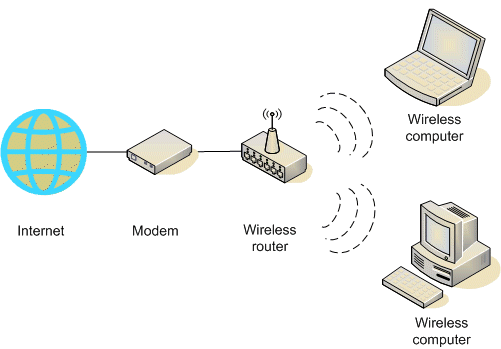
In a traditional wireless network, a wireless router acts as a base station, much like the base station for cordless phones. All wireless communications go through the wireless router, allowing nearby computers to connect to the Internet or to each other.

image

Ad hoc wireless networks work more like Willkie-talkies, because the computers communicate directly with each other. By enabling Internet Connection Sharing on one of the computers, you can share Internet access.

image

Ad hoc networking might seem like a much smarter alternative to using a wireless router, but it does have a couple of disadvantages:

• If the computer connected to the Internet is shut down, all computers that are part of the ad hoc network lose their Internet access.

• To connect to the Internet, one computer always needs a wired network connection.

To connect your computers to the Internet using an ad hoc wireless network, follow these high-level steps (described in more detail later in this article):

1. Enable Internet Connection Sharing on the Internet-connected computer. You can skip this step if you don't need to access the Web.

2. Set up the ad hoc wireless network on the Internet-connected computer.

3. Add your other computers to the wireless network.

How to enable Internet Connection Sharing

On networks with wireless routers, the router has the important job of forwarding communications from the computers on your home network to the Internet. On ad hoc networks, you must designate one computer to serve this role. The computer you choose must have a wired connection to the Internet, and it should be left on whenever you want to be able to use your other computers.


How to set up the first computer

To set up an ad hoc wireless network that allows computers to share an Internet connection without a router

1. If necessary, install a wireless network adapter.

2. Click Start, and then click Control Panel.

Start menu with Control Panel selected

3. Under Pick a category, click Network and Internet Connections.

Control Panel with Network and Internet Connections selected

4. Under or pick a Control Panel icon, click Network Connections.

Or pick a Control Panel icon page with Network Connections selected

5. Right-click your wireless network connection, and then click Properties.

Wireless Network Connection options menu with pointer on Properties

6. In the Wireless Network Connection Properties dialog box, click the Wireless Networks tab.

Wireless Networks tab in Wireless Network Connection Properties dialog box

7. On the Wireless Networks tab, under Preferred networks, click Add.

Wireless Networks tab in Wireless Network Connection Properties dialog box with pointer on Add button

8. In the Wireless network properties dialog box, on the Association tab, type the name of your ad hoc wireless network in Network name (SSID) box (shown in step 10). For example, you could name your wireless network MyHomeNetwork.

9. Clear the The key is provided for me automatically check box and select the This is a computer-to-computer (ad hoc) network check box.

10. Create a 13-digit password and type it in both the Network key and Confirm network key boxes. For the best security, include letters, numbers, and punctuation. Then click OK.

Association tab in Wireless network properties dialog box

11. Click OK again to save your changes.

Wireless Networks tab in Wireless Network Connection Properties dialog box


How to set up additional computers

If the computer you want to add to your network does not have built-in wireless network support, install a wireless network adapter.

Windows XP automatically detects the new adapter and notifies you that it found a wireless network.

Wireless networks detected notification

Now connect your computer to your wireless network

Note: These steps apply only if you're using Windows XP Service Pack 2 (SP2). If you haven't installed SP2, visit Microsoft Update to install it before connecting to the ad hoc network.

1. Right-click the Wireless Network icon in the lower right corner of your screen, and then click View Available Wireless Networks.

Wireless Network icon shortcut menu with View Available Wireless Networks selected

Note: If you run into any problems, consult the documentation that came with your network adapter. Don't be afraid to call the manufacturer's technical support department for help.

2. The Wireless Network Connection window appears and displays your wireless network listed with the SSID you chose. If you don't see your network, click Refresh Network List in the upper left corner. Click your network, and then click Connect in the lower right corner.

Wireless Network Connection window Choose a wireless network page, with pointer on Connect

3. Windows XP prompts you to enter a key. Type your encryption key in both the Network key and Confirm network key boxes, and then click Connect.

Wireless Network Connection window, Network key prompt, with pointer on Connect

Windows XP shows its progress as it connects to your network. After you're connected, you can close the Wireless Network Connection window.

Repeat these three steps on each computer that you want to connect to your ad hoc wireless network.

Now you're ready to browse the Web wirelessly, from any computer you add to your home network.

- JMD Computer                                                                         Keep Comment

* if Link is Broken, fill free form click here with Link Details.

Source:- http://www.microsoft.com/windowsxp/using/networking/setup/adhoc.mspx#1